Settings
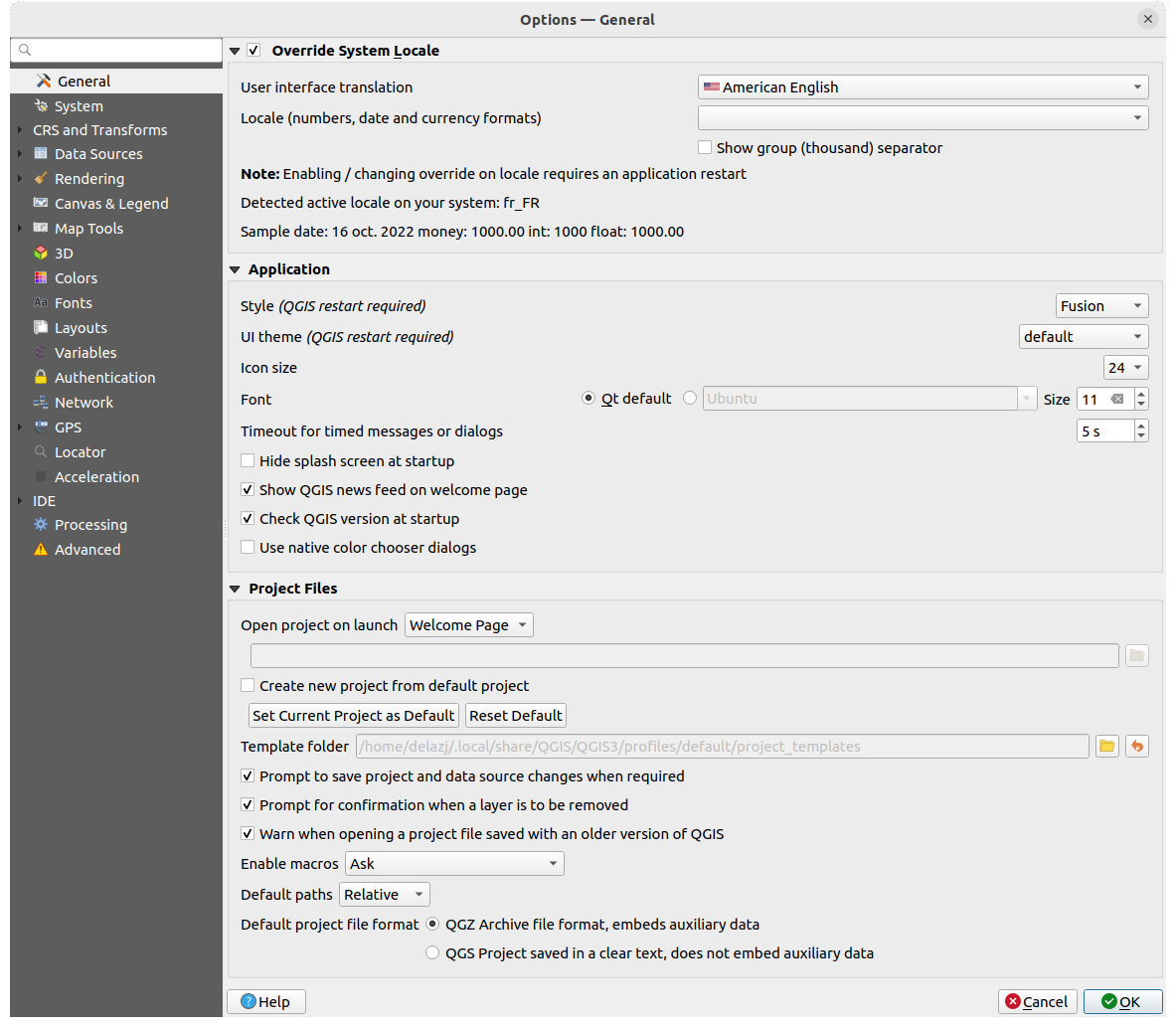
The settings used by the plugin are integrated into QGIS Settings > 
Options... menu:
Environment variables
Most of parameters can be defined via environment variables. This allows plugin configuration to be managed directly by the IT Department or tools like QGIS Deployment Toolbelt (QDT). It offers different scopes:
for every QGIS profiles on a computer (requires admin access level)
for every QGIS profiles in an user session
in a specific QGIS profile: see
Preferences>SystemandEnvironment variablespanel (see the relevant section in the official documentation)during a QGIS session only once: set it in the command line when launching QGIS, for example:
QGIS_QGIS_PLUGIN_TEMPLATER_TEST_GITHUB_DEBUG_MODE=true qgisorenv QGIS_QGIS_PLUGIN_TEMPLATER_TEST_GITHUB_DEBUG_MODE=true qgisdepending on your system.
For example, in a classic Linux system, if you want to enable GitLab notifications and include QGIS and plugins in new issues for every QGIS profile in your user session, you can add the following lines to your .bashrc, .zshrc, or .profile file:
export QGIS_QGIS_PLUGIN_TEMPLATER_TEST_GITHUB_DEBUG_MODE="true"
On Windows, it’s even more simple, there is a GUI to set environment variables to both system (admin) and user scopes. Find it through your start menu.
The following table lists the available parameters with their associated environment variable and default value:
Parameter |
Environment variable |
Default value |
|---|---|---|
Enable debug mode |
|
|